IPTV from scratch: launch your service with Catena and iMPlayer
An IPTV service starts to take shape when a customer can open their channels on a TV, find a programme and watch it. With Catena, you can manage the broadcast and subscriber channel packages in one console. iMPlayer provides the viewer’s interface, receiving a personal channel playlist and programme guide from Catena.
Our original IPTV from scratch guide covers the whole infrastructure, including satellite reception and separate transcoding and delivery servers. This guide follows a concrete launch scenario with Catena and iMPlayer: a few channels, a test package and a test subscriber. Once that path works, you have a basis for adding channels and connecting your commercial systems.
What each part does
| Part | Its job | Benefit for your launch |
|---|---|---|
| Your content sources | Supply the broadcasts you distribute | Start with an existing feed or your own channels |
| Catena | Ingest and deliver streams, manage channels, packages, subscribers and EPG | Configure broadcasting and the subscriber lineup together |
| iMPlayer | Display the channel list, guide and video on the viewer’s device | Use an existing TV player for the pilot |
| Your billing and customer systems | Sell access and manage payments and customer relationships | Connect your commercial workflow to the service |
iMPlayer is a media player; you supply the channels. Start with content you have the right to distribute, a compatible device running iMPlayer, a Catena server and a domain name accessible from the subscriber’s network. A single Catena machine can host the first pilot; hardware and connection capacity depend on your sources, transcoding and simultaneous viewers.
Step 1. Install Catena and verify the first stream
Follow the Catena quick start on an Ubuntu 24.04 machine. It takes you through installation, administrator sign-in and a synthetic test source with an H.264/AAC transcoding preset. Use that test to check the video path before you depend on a real content supplier.
Next, create a stream in Streams and attach the source you will actually broadcast. Check picture and sound in the console. Add transcoding when the source needs different codecs or a quality ladder for viewers on different connections. A working preview is the first checkpoint: a playlist cannot repair a broken input.
Use your public domain and configure HTTPS. The player must be able to reach the service and the playback addresses it redirects to from the subscriber’s network. Test that from outside the operator’s LAN as well.
Step 2. Turn broadcasts into a channel lineup
A stream describes the technical broadcast: sources, transcoding and recording. A channel describes what the customer sees: title, number and a link to that stream.
Open Channels, create a channel, assign its stream and choose its number. Give it a clear title and, where useful, a group such as News, Sports or Movies. Add a logo, or apply the suggestion from your EPG source. Catena exports groups and logos in the compatible IPTV playlist, so viewers can navigate a growing lineup more easily.
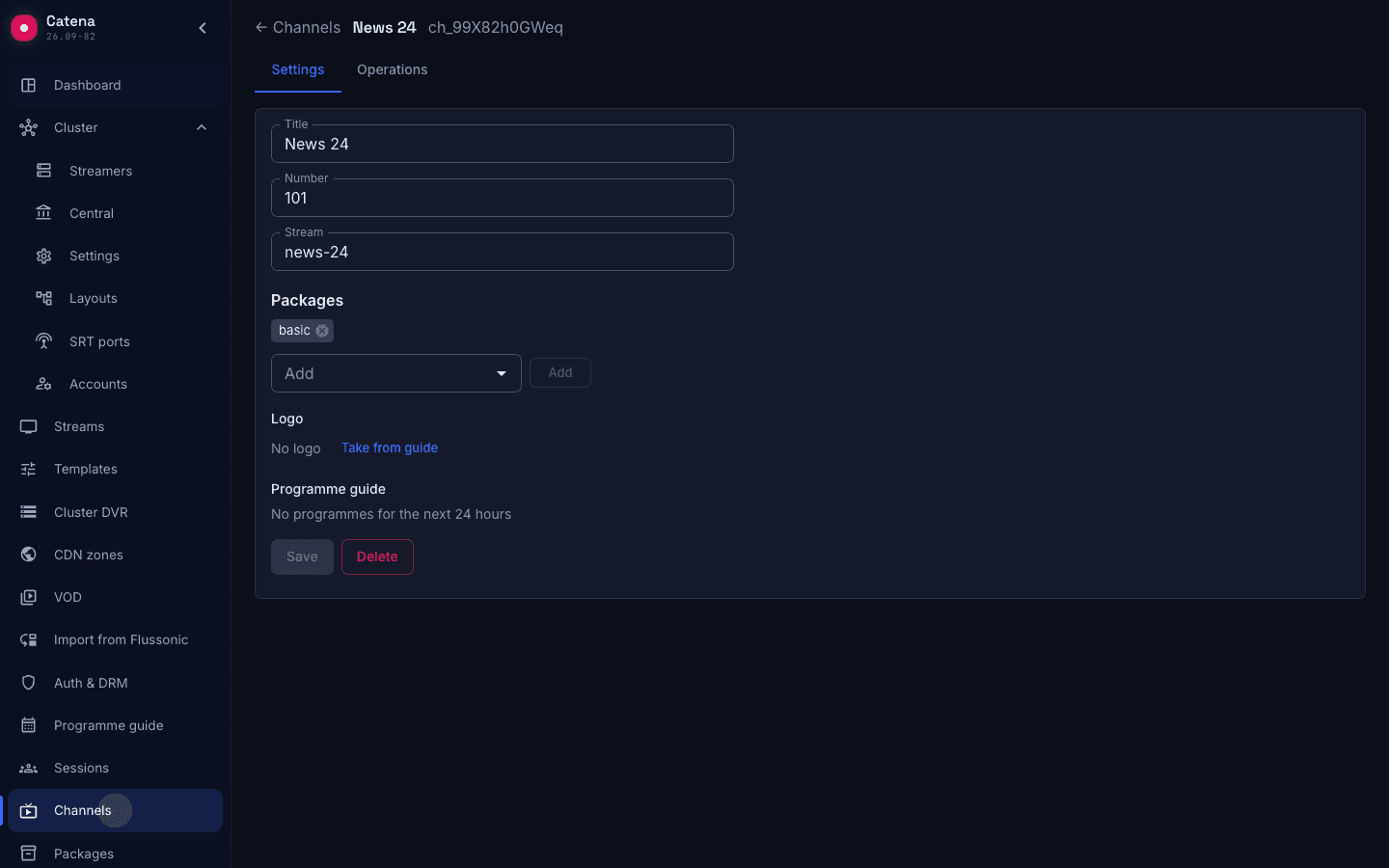
Repeat for the pilot channels. Check every channel’s stream assignment: a channel with no stream is omitted from the exported playlist. The channel manual explains the relationship in more detail.
Step 3. Create a package and a test subscriber
In Packages, create a package such as basic and add the pilot channels. Set its simultaneous-screen limit for the offer you want to test. A free package is available to every subscriber, so enable Free only for channels intended for everyone.
In Subscribers, create a test customer and grant a subscription to basic. Check Available channels on the subscriber card: this is the lineup the export will use. The customer sees channels from their subscribed packages plus free packages; a channel outside every package is available to nobody.
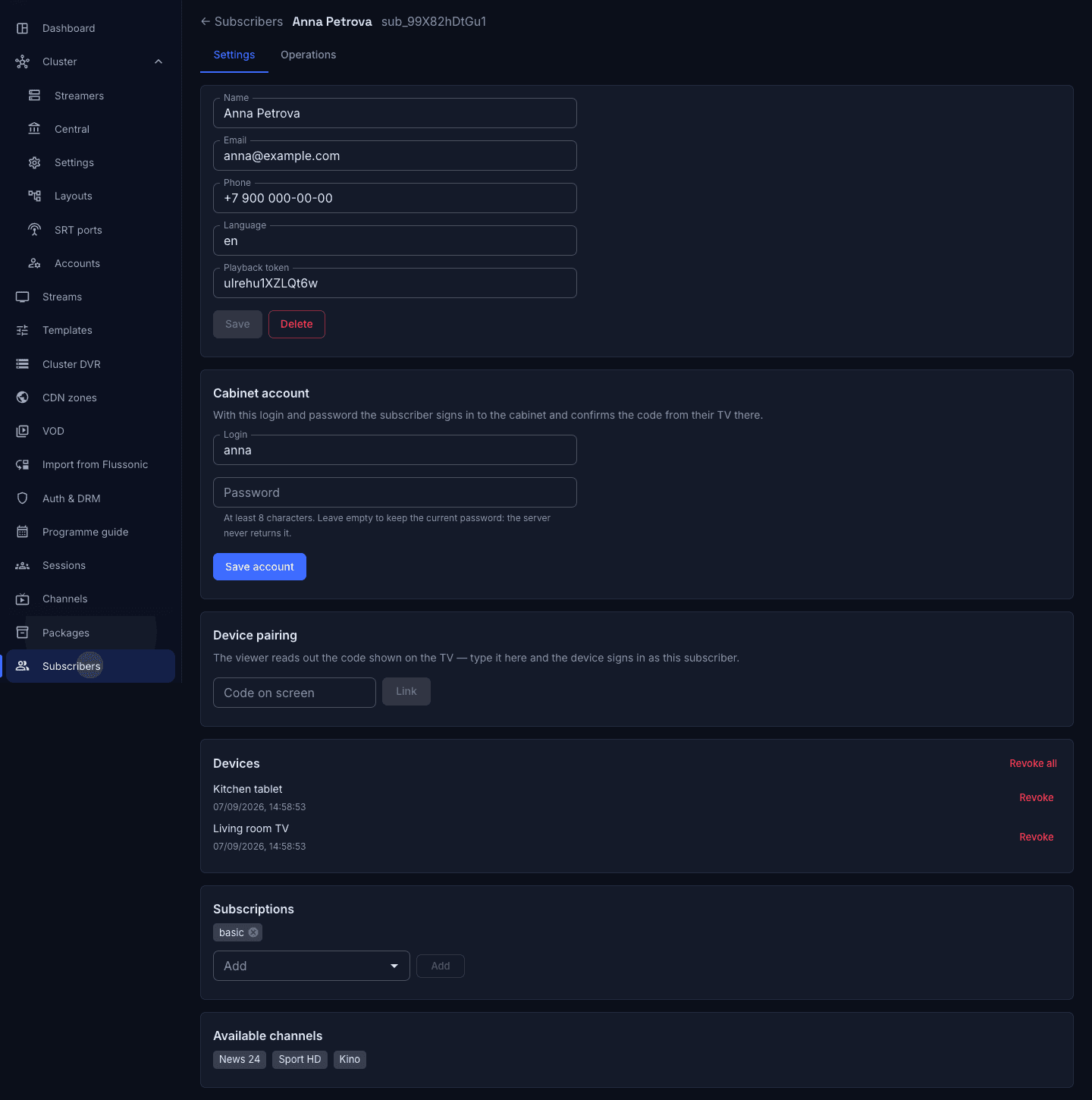
Copy the subscriber’s Playback token for the next step. Give each customer their own links. You can configure these records manually for a pilot and use Catena’s API to connect package assignment to your billing workflow as you grow.
Step 4. Prepare the programme guide
Open Programme guide, add the URL of your XMLTV source and set its refresh interval. Then bind each stream to the appropriate channel in that source. Catena can propose matches by name; review them before applying a bulk assignment.

Check that programmes appear in Catena before testing the guide in iMPlayer. A successful file download with no bound streams produces an empty schedule. Catena exports the guide for the subscriber’s available channels, and matching channel IDs connect the playlist to XMLTV. Read the EPG setup guide for importing and diagnosing the source.
Step 5. Give iMPlayer two subscriber links
Use your Catena domain and the playback token from the subscriber card. For an installation at tv.example.com, the addresses are:
M3U playlist:
https://tv.example.com/playback/tv/iptv.m3u8?token=SUBSCRIBER_TOKEN

XMLTV programme guide:
https://tv.example.com/playback/tv/xmltv.xml?token=SUBSCRIBER_TOKEN
Replace the example domain and SUBSCRIBER_TOKEN with your values. Open the playlist URL in a browser: the response should begin with #EXTM3U and contain your channel entries.
Use iptv.m3u8 for this setup. Catena also offers playlist.m3u8, but the IPTV export provides the absolute HLS addresses expected by players that use the Flussonic playlist format. In Catena 26.10 these links carry subscriber credentials, so the imported list does not become unusable merely because a short-lived playback ticket expired. Reload the playlist when its channel lineup changes.
In iMPlayer, add a playlist using the M3U URL option, give it a name and paste the first address. Add the second address as that playlist’s EPG/XMLTV URL, save and refresh both the channel list and guide. The exact menu labels vary by app version; this setup uses M3U and XMLTV rather than portal credentials. Use the official iMPlayer site for downloads and its help pages for your device.
Open a channel, switch to another and check the current programme. Keep these subscriber links private: they contain the customer’s credentials. The playlist and XMLTV manual lists the export endpoints.
Step 6. Add catch-up and check access
For catch-up, enable DVR recording on the streams you want to archive and let recordings accumulate. When an archive exists, Catena adds catchup="fs" and catchup-days to the IPTV entry. Test the player’s Flussonic-compatible catch-up support on the device and version you plan to offer. EPG alone provides a schedule; past programmes need an actual recording within the archive window.
Before inviting customers, check playback authorization. Creating packages is one part of access control; the streaming path also needs protection. Test the allowed customer, an unauthorized request, a channel outside the customer’s package and simultaneous viewing above the package limit. If your content requires DRM, validate the complete DRM and device combination separately from this basic M3U pilot.
Step 7. Rehearse onboarding and support
A useful pilot covers the full subscriber journey: assign a package, send two links, start playback, refresh the guide and change the lineup. Test from the customer’s network, including a device restart and a fresh playback attempt the next day.
| Symptom | First thing to check |
|---|---|
| No channels | Available channels on the subscriber card, package membership and assigned streams |
| Browser downloads the list, player shows none | Use the IPTV export iptv.m3u8 |
| Video works, guide is empty | XMLTV URL in the player, EPG import and stream bindings in Catena |
| Live works, past programmes do not | DVR recording, available archive window and the player’s catch-up support |
| Works in the office, fails at home | Public DNS, HTTPS and reachability of the redirected playback address |
Use Catena’s Sessions screen to see whether the subscriber actually reached playback. It helps support distinguish a player setup problem from a source or delivery problem.
As the service grows, add streamers and separate delivery or archive work according to load. If your next step is a film library, see how Catena’s VOD catalogue supports your online cinema. Your pilot gives you a tested broadcast and subscriber path to build on.